Everyday help / GUIDE 26
Choosing a Character and Making an Avatar Look Good
Before starting a round, you may want a character that feels like yours or a face you can recognize quickly in the room. The third setup step offers six animal avatars and an optional way to use your own picture. This is a comfortable place to personalize the game without worrying about choosing the strongest character. Every avatar plays by the same rules, so you can pick the face you enjoy and concentrate on learning the house.
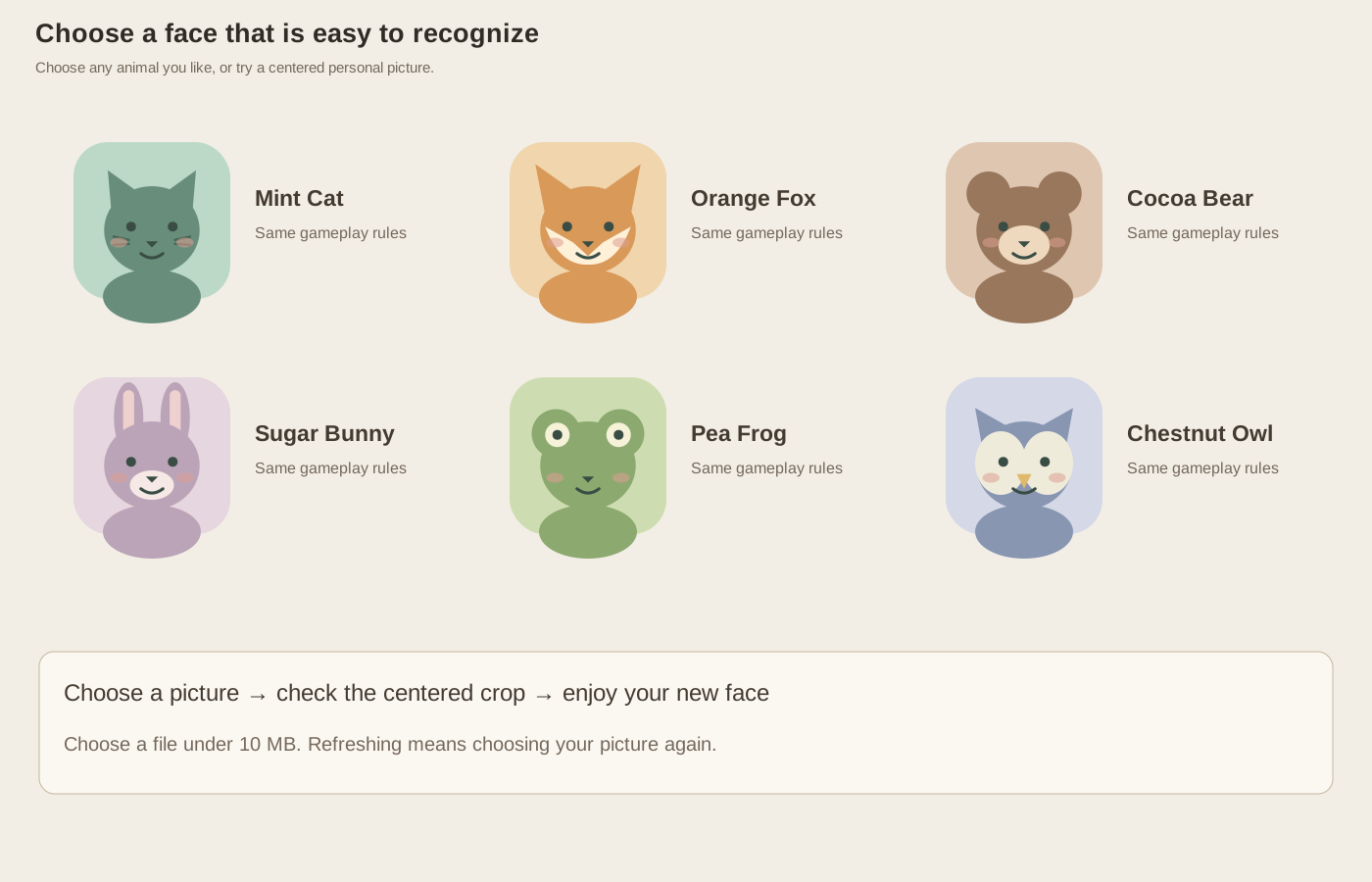
Pick an animal you can spot easily
Mint Cat is selected when the page first opens. The other choices are Orange Fox, Cocoa Bear, Sugar Bunny, Pea Frog, and Chestnut Owl. Click a character and look for its name and preview to change. That confirmation makes it easy to tell whether your selection registered before you begin. You can return to the menu and choose a different face between rounds.
The AI characters use the same family of animal illustrations. Your choice does not make a seeker smarter, increase your movement speed, or give you better hiding places. If you are playing your first round, choose a character with a color or face that catches your eye. Recognizing your own avatar is more useful than trying to guess an advantage that the characters do not have.
Choose a photo with a clear center
For a personal picture, open “Use your own image” in the character step, then use the upload control. Choose an image file smaller than the displayed 10 MB limit. A simple face, pet portrait, or bold symbol usually works better than a photograph containing lots of tiny details. During play, the picture appears inside a small round picture, so a clear subject matters more than an elaborate background.
The game takes a square crop from the middle of the image. A wide landscape can lose details at the sides, and a tall portrait can lose details above and below the center. There is no crop-position slider in the game. Before uploading, look at whether the important part of your picture already sits near the center rather than assuming the whole photograph will fit into the picture.
Fix an awkward crop before starting
After choosing the file, check the avatar preview. If a person's face is cut off or a pet sits partly outside the picture, choose another picture or prepare a square version with the subject centered. You can use any familiar photo-editing tool to crop the picture first, then choose that new file. You do not need to begin a round just to see whether the selection looks right.
If the game says it cannot read the image, try a different image file. Choosing a smaller copy can help you stay within the size limit, while choosing a different picture can avoid an unreadable file. The error is about loading that selection; it does not mean your previous animal avatar has become unusable. Select one of the animals again if you simply want to get back to playing.
Know what happens when you return later
The personal image is used only in your current page. It is not sent to a game profile or shared with other players. Returning to the menu during the same visit keeps your choice available, but refreshing or reopening the page means choosing it again. If you like using a particular picture, keep that file somewhere easy to find for your next session.
A new face also does not change how you fit through doors or how far away furniture responds. Transparent edges in an image will not help you squeeze around a table. Once the preview looks good, start a familiar one-opponent round and enjoy the change without altering your movement habits. Personalization works best when it makes the character easier to recognize and the game more pleasant to revisit, while leaving you free to choose any animal or image on the next visit.